Configure Okta as an IdP in the Cloud Identity Engine
If
you want to use Okta to authenticate users with the Cloud Identity Engine, there are two
ways to configure Okta authentication with the Cloud Identity Engine:
Select the method you want to use to integrate the Okta authentication in the
Cloud Identity Engine and complete the steps in the Okta management console.
Copy the Entity ID and store it in a secure
location.
Copy the Assertion Consumer Service URL and
store it in a secure location.
Click Download SP Certificate and store it in a
secure location.
Click Download SP Metadata and store it in a
secure location.
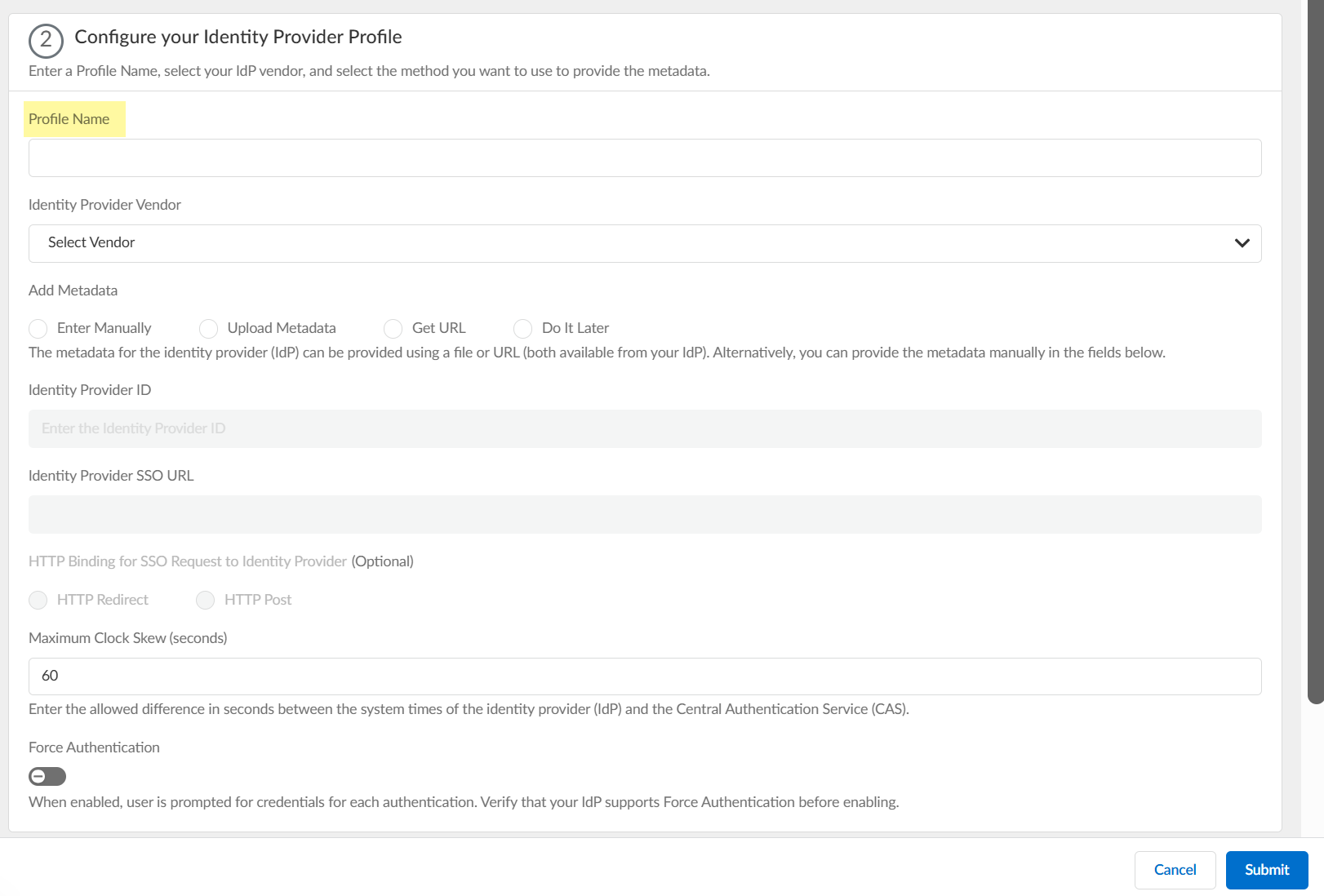
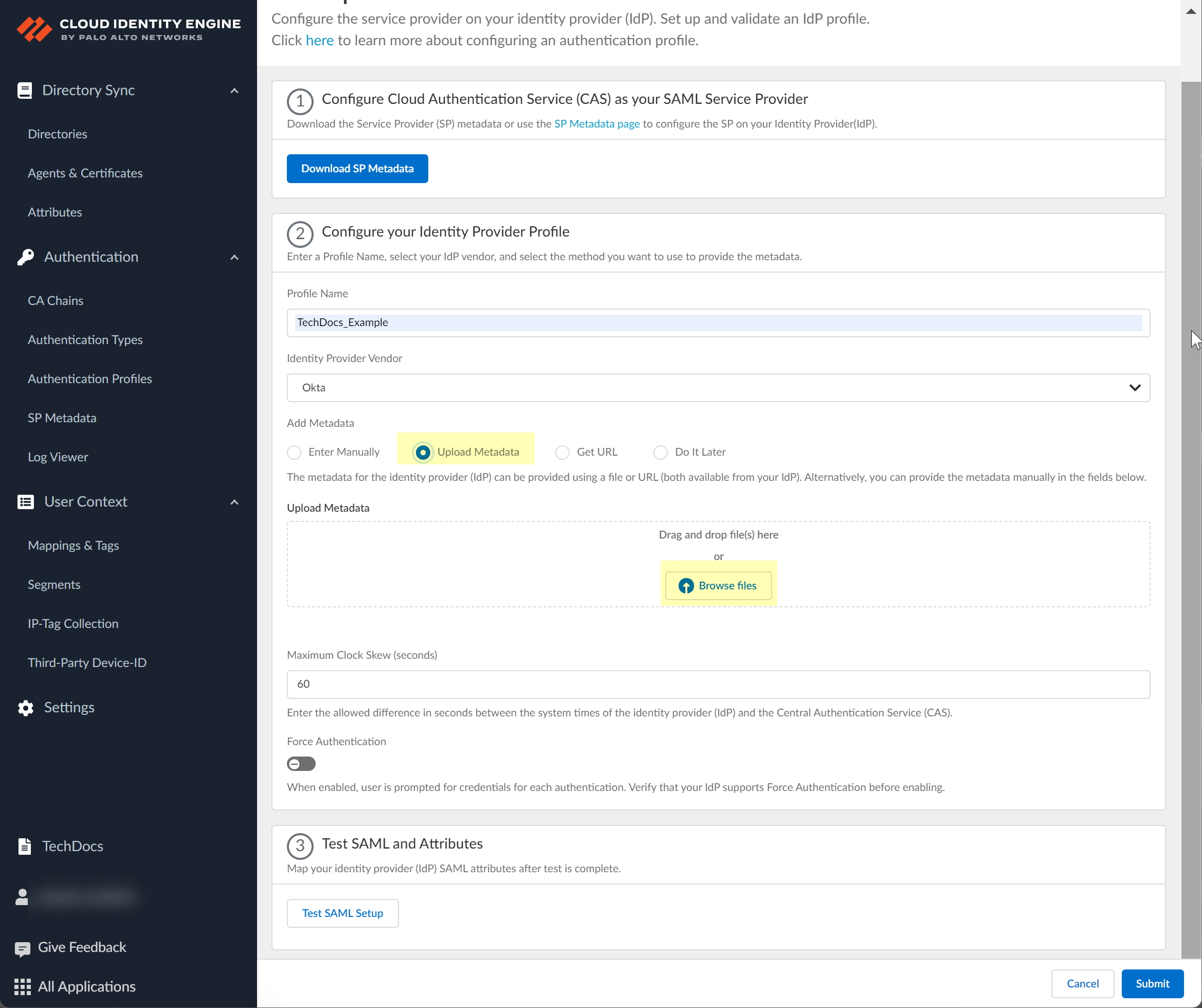
Configure the Okta IDP profile.
Enter a unique and descriptive Profile
Name.
Select Okta as the Identity Provider
Vendor.
Select the method you want to use to Add Metadata.
If you want to enter the information manually, copy the client ID and
domain, download the SP metadata certificate, then enter the information
in the Cloud Identity Engine IdP profile.
In the Okta Admin Console, select ApplicationsAPI Service Integrations and select the Palo Alto Networks
Cloud Identity Engine integration.
Copy the necessary information from the Okta
Admin Console and enter it in the IdP profile on the Cloud
Identity Engine app as indicated in the following table:
Copy or Download from Okta
Admin Console
Enter in Cloud Identity Engine
Copy the Client
ID.
Enter it as the
Identity Provider
ID.
N/A
Click to
Upload the SP metadata certificate you
downloaded in step 3.e.
Copy the Okta
Domain.
Enter the URL as the
Identity Provider SSO
URL.
Select the HTTP Binding for SSO Request to
IdP method you want to use for the SAML binding
that allows the firewall and IdP to exchange request and
response messages:
HTTP Redirect—Transmit SAML
messages through URL parameters.
HTTP Post—Transmit SAML messages
using base64-encoded HTML.
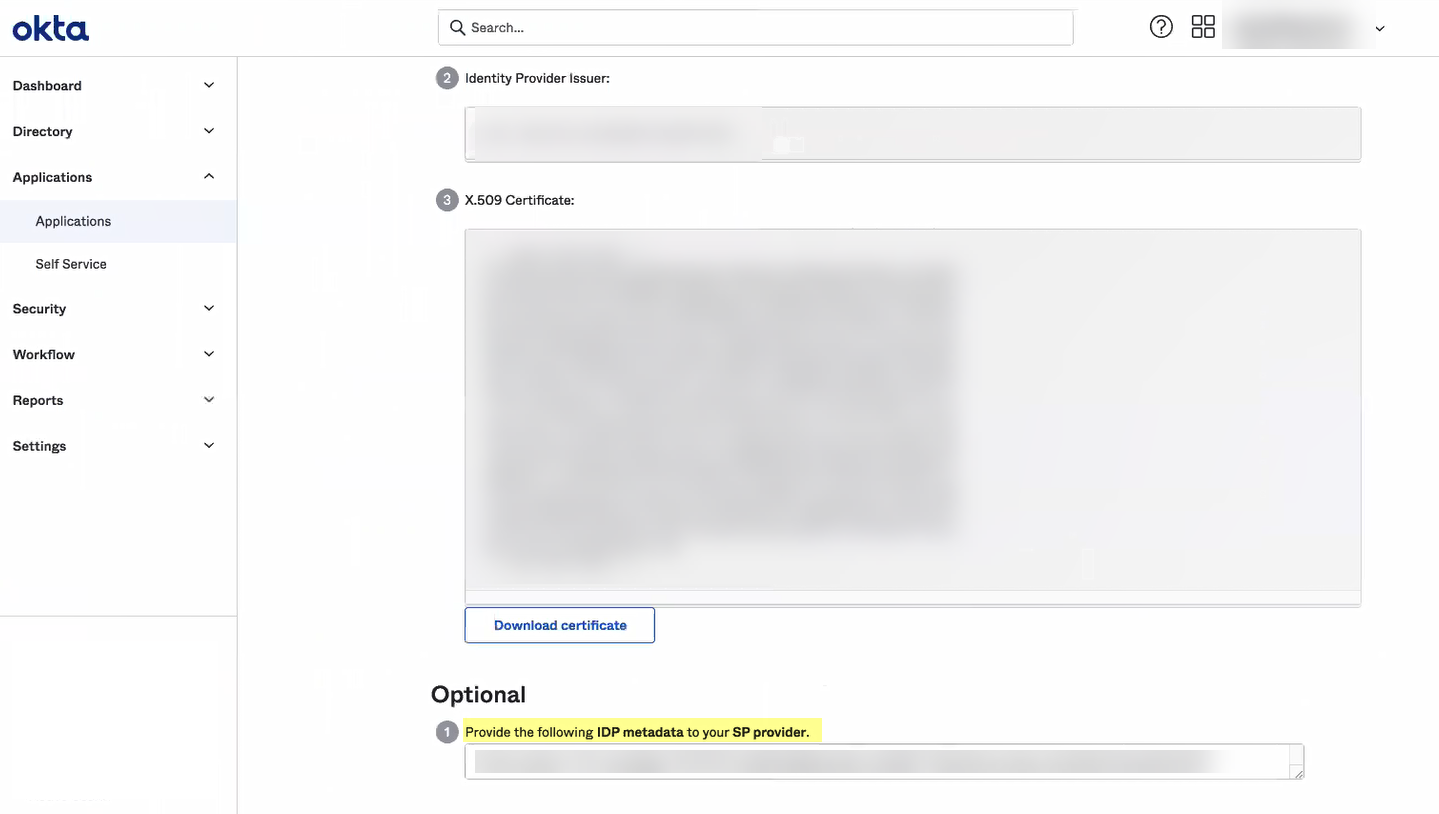
If you want to upload a metadata file, download the metadata file from
your IdP management system.
In the Okta Admin Console, click View Setup
Info and copy the IDP
metadata and save it to a secure location.
In the Cloud Identity Engine app, click Browse
Files to select the metadata file then
Open the metadata file.
If you want to use a URL to retrieve the metadata, copy the
IDP metadata from step 4.2. Paste it in the
profile and click Get URL to obtain the metadata.
If you don't want to
enter the configuration information now, you can Do it
later. This option allows you to submit the profile
without including configuration information. However, you must edit the
profile to include the configuration information to use the
authentication type in an authentication profile.
Specify the Maximum Clock Skew (seconds), which is the
allowed difference in seconds between the system times of the IdP and the
firewall at the moment when the firewall validates IdP messages (default is 60;
range is 1–900). If the difference exceeds this value, authentication
fails.
To require users to log in using their credentials to reconnect to
GlobalProtect, enable Force Authentication.
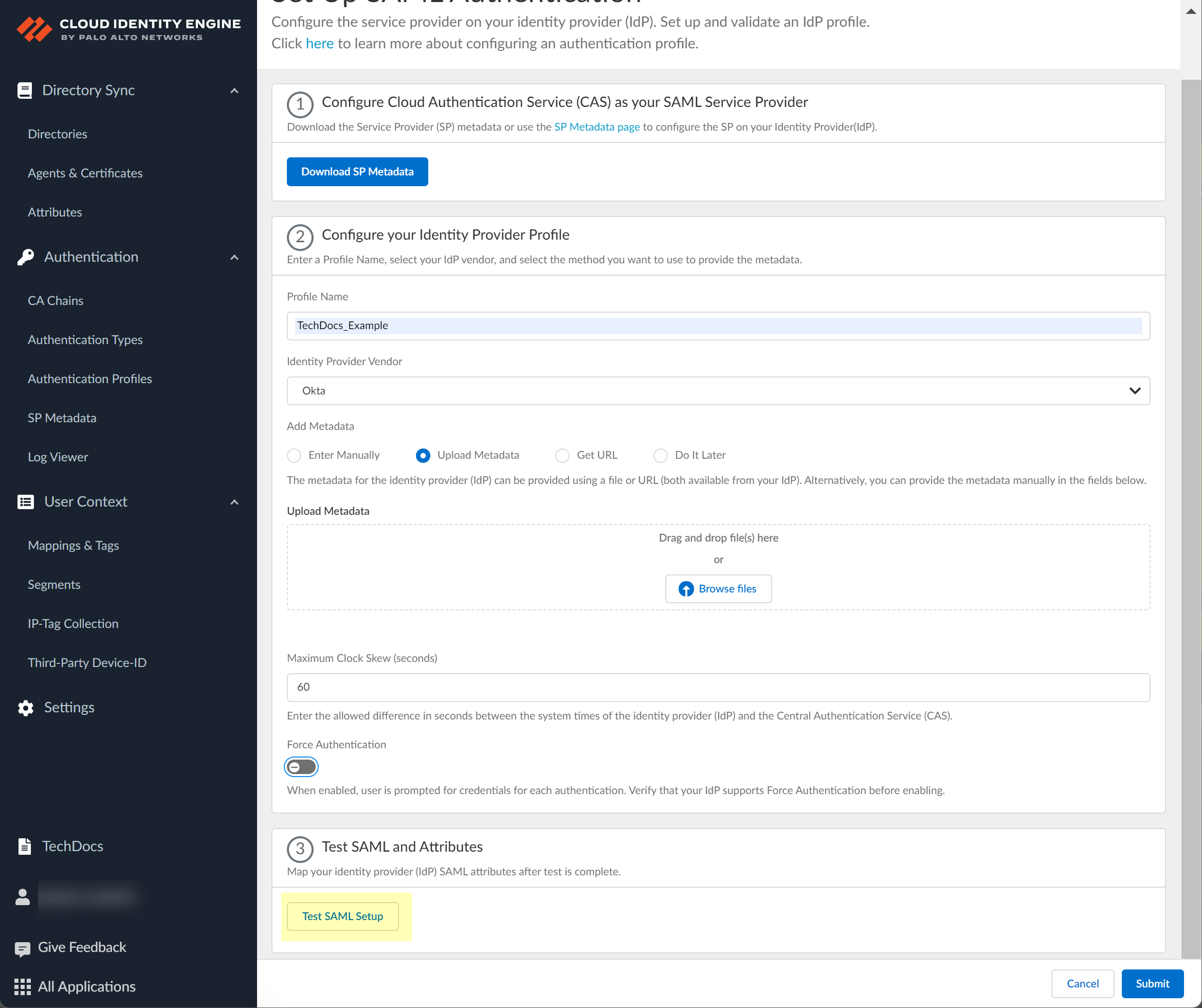
Test SAML setup to verify the profile configuration.
The Test SAML setup option
is not available until the Cloud Identity Engine validates the identity
provider profile data.
This step is necessary to confirm that your firewall and IdP can
communicate.
Select the SAML attributes you want the firewall to use for authentication and
Submit the IdP profile.
You must select the username attribute in the Okta Admin Console for the
attribute to display in the Cloud Identity Engine.
In the Okta Admin Console, Edit the
User Attributes & Claims.
In the Cloud Identity Engine app, select the Username
Attribute and optionally, the Usergroup
Attribute, Access Domain,
User Domain, and Admin
Role.
If you're using the Cloud Identity Engine
for SAML authentication with GlobalProtect Clientless VPN, you must
configure the User Domain attribute to the
same value as the userdomain field in the
Okta Admin Console (ApplicationsApplicationsSAML 2.0General).
Configure Okta as an IdP in the Cloud Identity Engine (Gallery)
Learn about configruing Okta as an IdP in CIE.
Palo Alto Networks strongly recommends that you integrate Okta in the Cloud Identity
Engine as a gallery application. Complete the following steps to add and configure
the Okta gallery application in the Cloud Identity Engine. Be sure to complete all
the steps here and in the Okta documentation.
The Cloud Identity Engine supports FedRAMP High for the gallery app only.
Log in to the Okta Admin Console and select ApplicationsApplications.
Click Browse App Catalog.
Search for Palo Alto Networks Cloud Identity Engine and
select Show all results.
Select the Single sign-on version of the Cloud Identity
Engine app.
Click Add Integration.
Optionally edit the Application label then click
Next.
Verify that SAML 2.0 is the sign-on option type.
If you enabled Force Authentication in step 7, uncheck
Disable Force Authentication.
Edit and paste the SAML Region.
The SAML Region is based on the Entity ID in the SP Metadata. To obtain the
SAML Region, enter only the text between the backslash in the Entity ID and
the paloaltonetworks.com domain. For example,
if the Entity ID is
https://cloud-auth.us.apps.paloaltonetworks.com/sp,
the SAML Region is cloud-auth.us.apps.
Select the Application username format that you want to
use to authenticate the user. For example, Email
represents the UserPrincipalName (UPN) format.
Click Done.
(Optional) If you want to configure other attributes in addition to the
username, refer to the Okta documentation.
Configure Okta as an IdP in the Cloud Identity Engine (Custom)
Learn about configuring Okta as an IdP in CIE.
Palo Alto Networks strongly recommends that you integrate Okta as a gallery
application. However, if you want to configure the Okta integration as a custom
application, complete the following steps.
Log in to the Okta Admin Console and select ApplicationsApplications.
Click Create App Integration.
Select SAML 2.0 as the sign-on method then click
Next.
Enter an App name then click
Next.
Copy the SP Metadata information from the Cloud Identity
Engine and enter it in the Okta Admin Console as described in the following
table:
Copy from Cloud Identity Engine
Enter in Okta Admin Console
Copy the Assertion Consumer
Service URL in step 3.
Enter the URL as the Single sign
on URL.
Copy the Entity ID in
step 3.
Enter it as the Audience URI (SP
Entity ID).
Specify the Name ID format and optionally the
Application username.
You must configure at least one SAML attribute that contains identification
information for the user (usually the username attribute) for the attributes
to display in the Cloud Identity Engine. To configure administrator access,
you must also enter values for the accessdomain
attribute and for the adminrole attribute that match
the values on the firewall.