
New Features - Strata Cloud Manager - April 2024
Aggregate Ethernet Interface Usability Enhancement
Configuring an Aggregate Ethernet interface variable in snippets or folders allows you to have reusable common configuration across the entire deployment. Aggregate Ethernet interface variable reduces duplication of configuration and significantly simplifies the process of updating and maintaining common configurations.
When you add interfaces for your firewalls, you can now configure the Aggregate Ethernet interface variable type in addition to the existing Layer 2, Layer 3, and tap interface types.
Colo-Connect Monitoring
Monitor data on your Colo-Connect service connections to provide a comprehensive view of the health and connectivity of your deployment. Monitor Colo-Connect enables you to monitor your private connectivity to hybrid cloud and on-premises data centers over cloud interconnects.
Prisma Access Colo-Connect uses GCP interconnect technology to offer high-bandwidth service connections to your private applications. Colo-Connect can work alongside existing IPSec tunnel-based connections, allowing for private app access to smaller data centers with lower bandwidth requirements. Gain insight into your Colo-Connect deployment by checking metrics like the number of links and their status, throughput patterns, and details of individual tunnels, connections, and links.
Configuration Indicator
Get clarity on the configuration elements that are applicable for a particular scope and whether they are inherited from a common configuration scope or generated by the system.
The color-coded configuration indicators help you understand where the configurations are inherited from, and also visually distinguish the object types for easy scanning.
Device Onboarding Rules
Automate NGFW onboarding to Strata Cloud Manager with a device onboarding rule, whether you're manually onboarding NGFW or onboarding using Zero Touch Provisioning (ZTP). You can associate the NGFW with a folder and apply predefined configuration when the NGFW first connects to Strata Cloud Manager . Strata Cloud Manager supports multiple device onboarding rules to define different match criteria that apply to different NGFW . Device onboarding rules are designed to simplify and greatly reduce the time spent onboarding new NGFW at scale and ensure the correct configuration is applied to newly onboarded NGFW .
Define which NGFW a rule applies to by using Match Criteria . This includes information such as the firewall Model and any Labels applied to the firewall during the onboarding process. You can define the rule Action to specify a Target Folder one or more NGFW are added to and the Snippet Association define any firewall-specific snippet configurations that need to be applied. Additionally, if you use SD-WAN or Cloud Identity Engine (CIE) you can also define and apply those necessary configurations in the device onboarding rule to ensure all required connectivity and user-based visibility and policy rule enforcement immediately after onboarding.
Strata Cloud Manager Connectivity Using Port 443
Palo Alto Networks NGFW (Managed by Strata Cloud Manager) use the dedicated non-standard port 3978 to communicate with Strata Cloud Manager by default. In PAN-OS 11.2, you can instead configure NGFW (Managed by Strata Cloud Manager) onboarding to Strata Cloud Manager to use destination port 443 instead of port 3978. Ports 3978 and 443 offer the same functionality for NGFW (Managed by Strata Cloud Manager) and Strata Cloud Manager communication. However, port 443 offers some distinct advantages when managing your network configurations, reducing your network attack surface, and implementing Security policy rules and audits:
Ease of Configuration and Use —Port 443 is the standard port used for HTTP traffic encrypted with SSL. Using port 443 for NGFW (Managed by Strata Cloud Manager) and Strata Cloud Manager communication greatly simplifies network configuration management for both administrators and end users.
Additionally, many corporate networks restrict incoming and outgoing traffic to a limited set of ports to minimize the network attack surface area. Port 443 is already commonly allowed on most enterprise networks without the need for additional network configurations. Using port 443 for NGFW (Managed by Strata Cloud Manager) and Strata Cloud Manager communication also improves your security posture by reducing the number of ports allowed on your network.
Improved Compatibility —Port 443 is universally accepted and is the expected port for secure communications. Security tools that use port 443 are normally compatible with existing security configurations. This greatly reduces the need for custom firewall configurations and rules.
Strata Cloud Manager: Activity Insights
Managing network visibility and operational efficiency across diverse deployments like Prisma Access and NGFW often requires juggling multiple dashboards, leading to fragmented analysis. Activity Insights solves this critical challenge by giving you an in-depth, consolidated view of your network activities across Prisma Access and NGFW deployments. Activity Insights brings together the visualization, monitoring, and reporting capabilities from dashboards like Application Usage, Network Usage, User Activity, and Threat Insights, providing all this data in a single, unified view.
Activity Insights pairs with the new Strata Cloud Manager Command Center homepage ; for anomalies, security gaps, degraded user experiences, impacts on security and health of your network that the homepage surfaces, you can drill down into Activity Insights and other dashboards to investigate and assess next steps.
Activity Insights provides a unified view of network data in relation to applications, users, threats, URLs, and network usage. You can also view the performance of Prisma SD-WAN applications with details on health score over a time range, transaction statistics, and bandwidth utilization metrics. The advanced reporting functionality enables you to download, share, and schedule reports that cover the data in the Overview tab. The report presents data separately for each filter applied in Activity Insights.
Furthermore, Activity Insights now displays direct users who connect to your network infrastructure while disconnected from GlobalProtect® . Previously, ADEM collected event information for these users, but Activity Insights did not show them. Now, you can gain complete visibility into network activity regardless of connection status, significantly improving analysis and reporting capabilities.
Trusted IP List
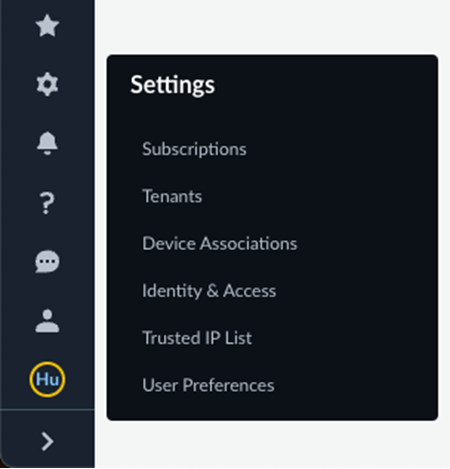
The Trusted IP List is a new system setting feature introduced to The Trusted IP List system setting allows you to enhance the administrative security posture of your Strata Cloud Manager tenants. This feature allows administrators to explicitly define a list of trusted source IP addresses that are permitted to access the Strata Cloud Manager web interface and API. This provides a layer of control, moving from the default "allow all" access model to a strictly "allow-listed" environment.
This functionality is designed to seamlessly integrate with multitenant deployments. When the Trusted IP List is configured on a parent tenant, the restrictions are automatically inherited and enforced top-down across all associated child tenants, ensuring consistent security policy across the hierarchy. The enforcement specifically targets the Strata Cloud Manager access points.
The Trusted IP List can be managed directly under and supports the bulk import of multiple IP addresses via a CSV file. Furthermore, a dedicated override mechanism is available through the primary Strata Cloud Manager hub, allowing users with necessary permissions to unlock access to a tenant if their IP is inadvertently blocked.
Update: App Security View
Network security administrators often struggle with fragmented visibility across their security infrastructure, making it difficult to quickly assess overall network health, identify emerging threats, and understand the impact of security events on user experience. Traditional approaches require navigating between multiple dashboards and tools to piece together a comprehensive view of security posture.
The Strata Cloud Manager Command Center serves as your new NetSec homepage and provides your first stop to assess the health, security, and efficiency of your network. In a single view, the command center shows you all users and IoT devices accessing the internet, SaaS applications, and private apps, and demonstrates how Prisma® Access, your NGFWs, and your security services protect them.

The command center provides you with four different views, each with its own tracked data, metrics, and actionable insights that you can examine and interact with:
Summary: You get a high-level look at all your network and security infrastructure. You can monitor the traffic between your sources (users, IoT) and applications (private, SaaS), and see metrics from onboarded security subscriptions.
Threats: You can dig deeper into anomalies on your network and block threats that impact your users. You can review the traffic inspected on your network and see how your Cloud-Delivered Security subscriptions detect and block threats around the clock.
Operational Health: You can review incidents of degraded user experience on your network and see root-cause analysis of the issues along with remediation recommendations.
Data Security: You can find high-risk sensitive data and update data profiles to further secure your network. You can review the sensitive data flow across your network and SaaS applications.
When the command center surfaces an issue through one of these views that you should address or investigate (an anomaly, a security gap, a degraded user experience, or something that impacts the security and health of your network), it provides a path to where you can take actions to further secure your network.
The Operational Health view and User Device Experience widgets in the Strata Cloud Manager Command Center now display Fair metrics alongside the existing Good and Poor performance indicators, providing you with more granular visibility into user session quality and network performance degradation levels. This enhanced categorization helps you better identify and address performance issues that fall between optimal and severely degraded states, enabling more precise troubleshooting and policy optimization decisions.
Strata Cloud Manager's Command Center now includes a comprehensive App Security view, providing centralized visibility and control over your application protection posture.
This new dashboard offers real-time insights into application security events, threat detection, and policy enforcement across your entire infrastructure. Monitor application-level attacks, track security policy effectiveness, and quickly identify vulnerable applications requiring attention. The Application Security view integrates seamlessly with the Command Center and provides recommendations for what can be done to increase your security posture.