Generate an Upgrade Check Report on a Standalone Device
Table of Contents

Generate an Upgrade Check Report on a Standalone Device
Generate an upgrade check report on a standalone device during the install workflow
or manually, compare reports, and remediate issues.
| Where Can I Use This? | What Do I Need? |
|---|---|
|
|
Use this feature to generate Upgrade Check reports to assess upgrade readiness,
remediate potential issues, and view the post-upgrade state of your device.
On the firewall, select Device > Software to generate an upgrade
check report for the firewall during the install process or Device > Upgrade
Check to generate an upgrade report manually.
On Panorama, select Panorama > Software to generate an upgrade check
report for the Panorama appliance during the install process or Device > Upgrade
Check to generate an upgrade report manually.
Generate an Upgrade Check Report During an Upgrade
Generate an upgrade check report during the upgrade process.
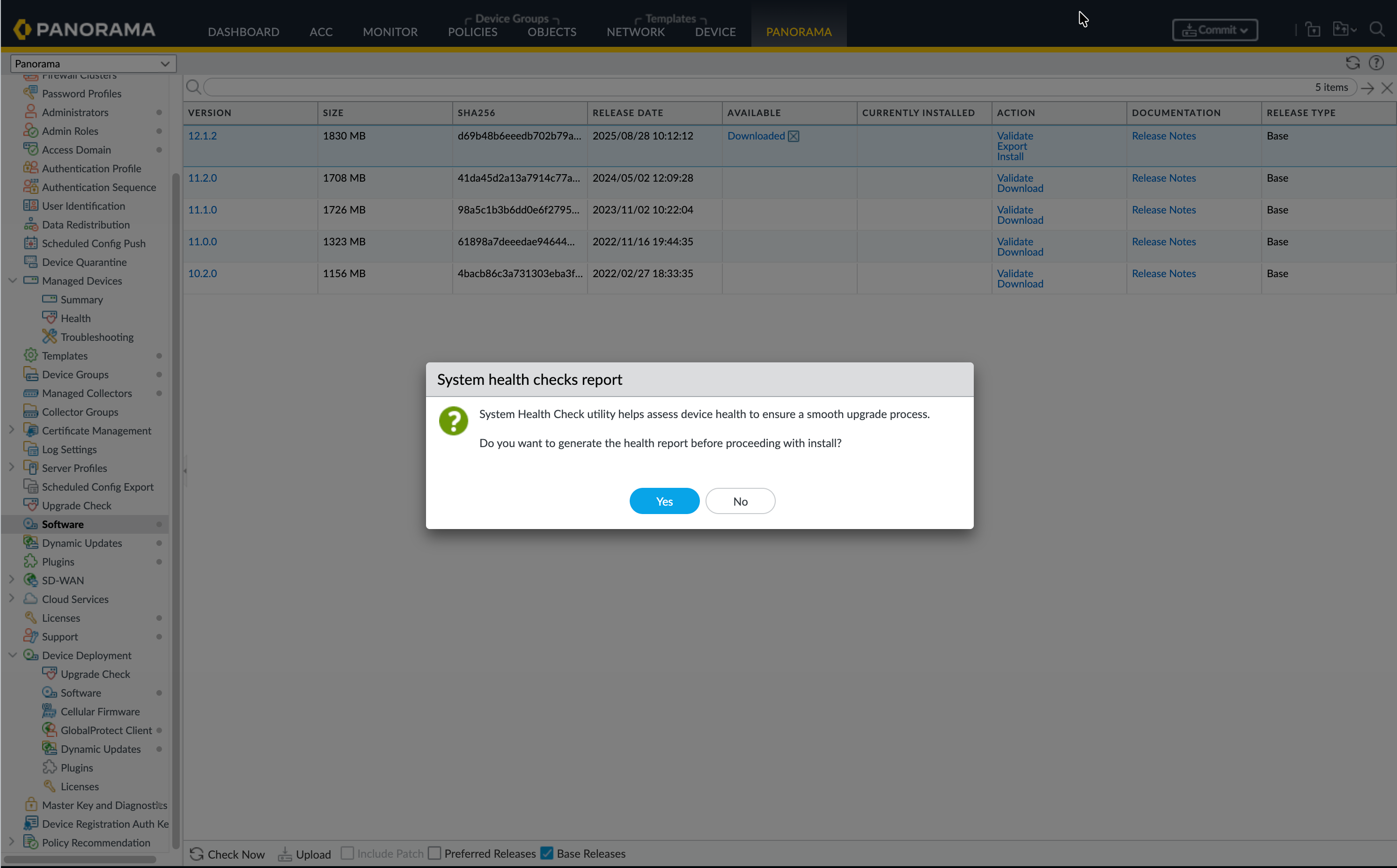
- Navigate to .Install the software image.Click Generate Report.
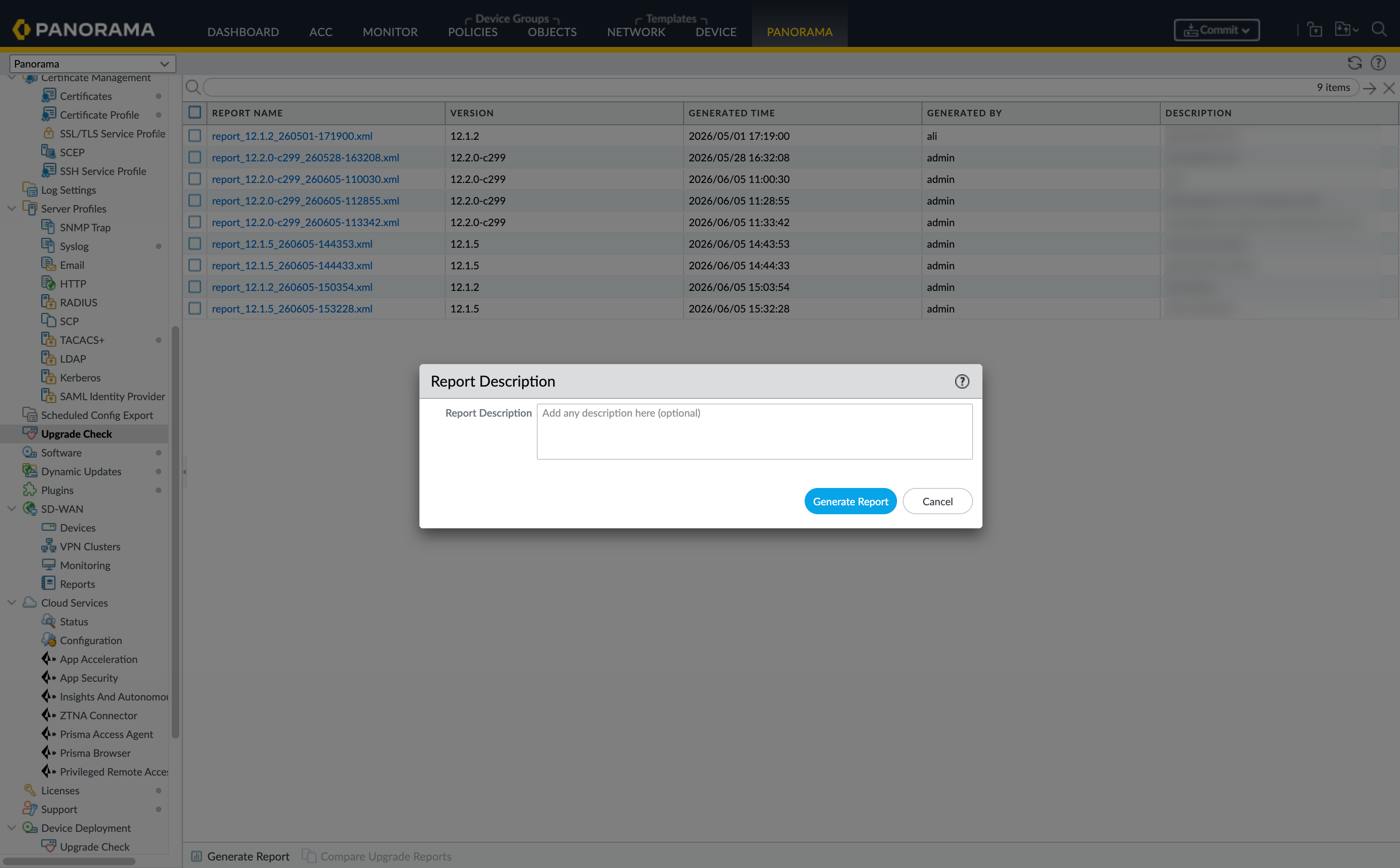
![]() Add a Report Description and click Generate Report.Describe whether the report is being generated before an upgrade or after an upgrade, and any remediation that has been made.
Add a Report Description and click Generate Report.Describe whether the report is being generated before an upgrade or after an upgrade, and any remediation that has been made.![]() If a check status is Warning or Critical_ALERT, remediate the issue.
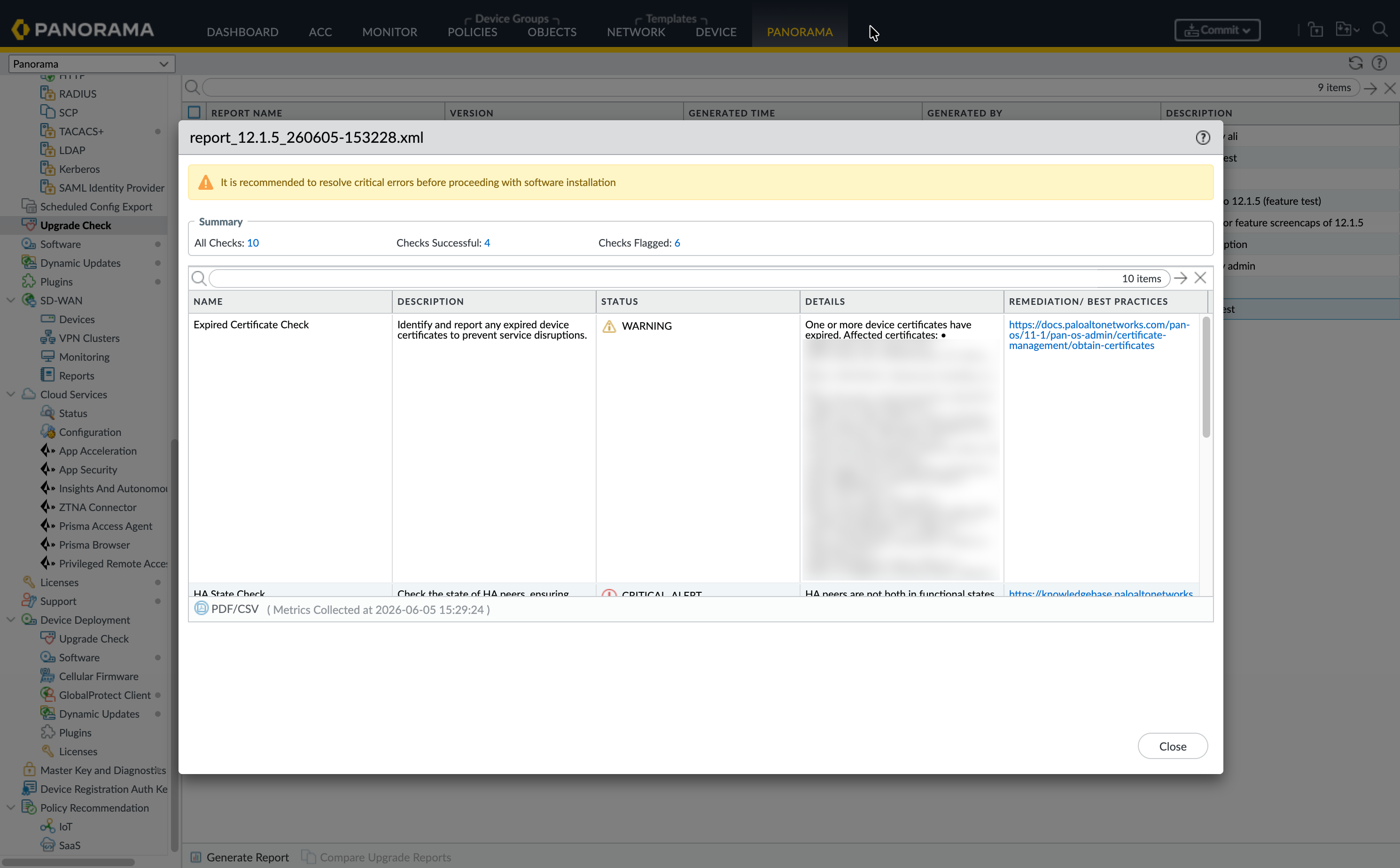
If a check status is Warning or Critical_ALERT, remediate the issue.![]() If no remediation is needed, click Start Install.After the install is completed, navigate to Panorama > Upgrade Check, generate a post-install report, and add a description.
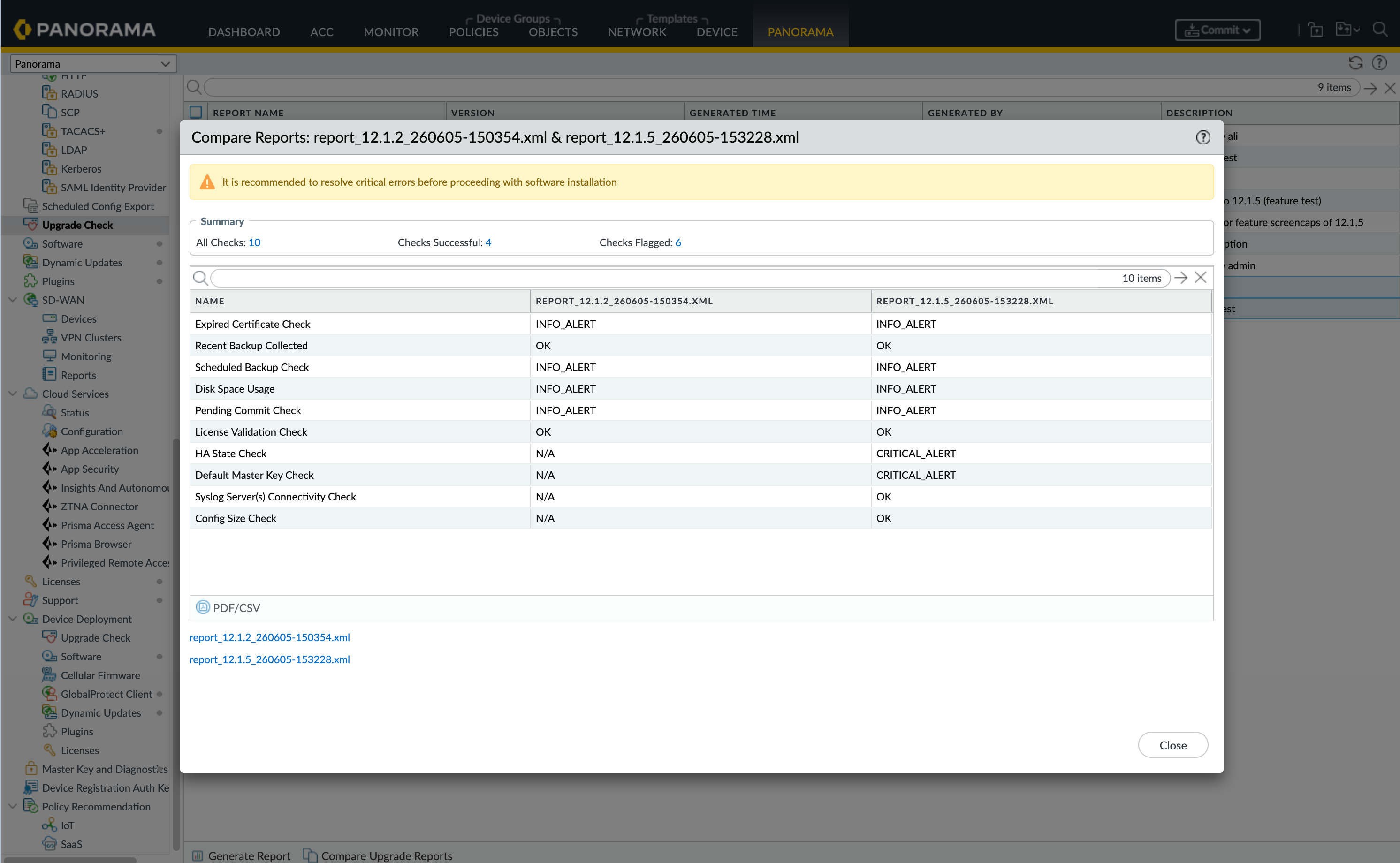
If no remediation is needed, click Start Install.After the install is completed, navigate to Panorama > Upgrade Check, generate a post-install report, and add a description.![]() Select the pre-install and post-install reports and click Compare Reports.
Select the pre-install and post-install reports and click Compare Reports.![]() (Optional) Download PDF/CSV to retain a copy of the report.
(Optional) Download PDF/CSV to retain a copy of the report.Generate an Upgrade Check Report Manually
Generate an upgrade check report outside of the upgrade process.- Navigate to .
![]() Add a Report Description and click Generate ReportNote any remediation that been made or the reason for generating the report.(Optional) Select two reports and click Compare Reports.
Add a Report Description and click Generate ReportNote any remediation that been made or the reason for generating the report.(Optional) Select two reports and click Compare Reports.![]() (Optional) Download PDF/CSV to retain a copy of the report.
(Optional) Download PDF/CSV to retain a copy of the report.Remediate Warnings and Alerts
How to fix the issues displayed in an upgrade check report.- Click a report name to open the report.Click Summary > Checks Flagged.Name: The check that was made.Description: The action needed to remediated the issue or an explanation of the check.Status: A critical alert that must be remediated for a successful upgrade, or a warning alert to consider making changes before upgrading.Details: Specifics of an issue. For example, if a Certificate Expiry Check is flagged, the expired certificates are displayed.Remediation/Best Practice: What is needed to resolve the issue, which may include a specific remediation link.Use remediation links or directions to resolve the issue.Generate a report.Select the pre-remediation and the post-remediation report and Compare Upgrade Reports to review the check status.