PAN-OS 12.2.2 and Later
Table of Contents

PAN-OS 12.2.2 and Later
Upgrade a WildFire cluster using the automated Panorama
upgrade workflow available in PAN-OS 12.2.2 and later.
For clusters running PAN-OS 12.2.2 and later, Panorama provides an
automated upgrade workflow that manages the upgrade sequence node by
node, including uploading software, installing, rebooting, and
validating each node before proceeding to the next.
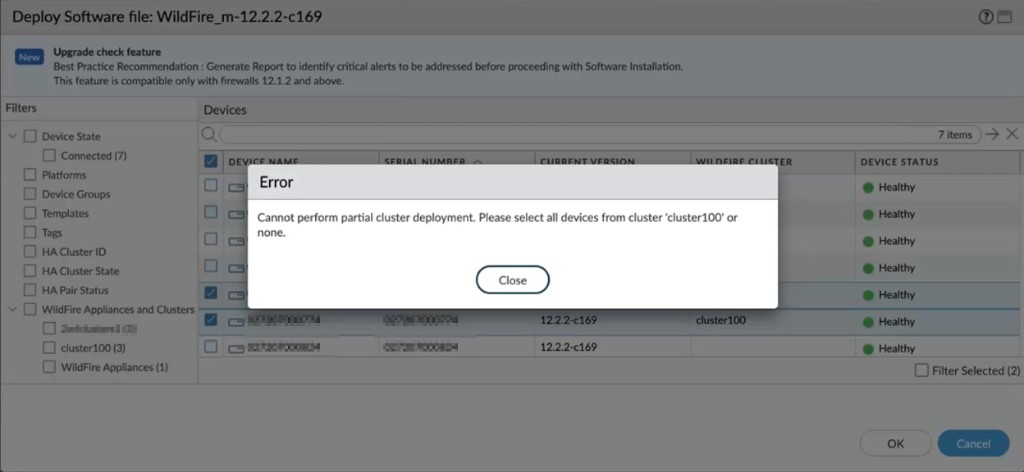
The upgrade is all-or-nothing: you must select all nodes in the
cluster for the upgrade. Panorama does not allow partial cluster
deployments. If you select only some nodes from a cluster, Panorama
displays the following error:
Cannot perform partial cluster deployment. Please
select all devices from cluster 'cluster-name' or
none.
Before you begin, ensure that:
- All cluster nodes are running PAN-OS 12.2.2 or later.
- Frontend and backend sample queues on all target nodes are empty.
- No active sample submissions are in progress on the cluster.
- All nodes in the cluster are connected to Panorama and in a healthy state.
Do not submit samples or commit and push
configurations during a cluster upgrade. The workflow engine
automatically blocks commits during the upgrade process, but you
should verify that sample queues are drained before initiating
the upgrade.
- Log in to the Panorama web interface.Select .Select the target cluster to upgrade.Initiate the software upgrade workflow by selecting the target software version for the cluster nodes.Panorama performs automatic pre-checks before proceeding with the upgrade. If any pre-check fails, Panorama reports the failure and does not begin the upgrade. After all pre-checks pass, the rolling upgrade begins with the active controller node first, then the passive controller node, then the worker nodes.Monitor the per-node upgrade progress.The upgrade workflow processes nodes in the following order, with each node progressing through a series of stages:
- Initialization—Workflow engine prepares the upgrade job.
- Prerequisites—Panorama validates the following:
- Panorama connectivity
- Panorama config status sync check
- WildFire upgrade support in current version
- Target version support
- Node health check
- Local queues empty check
- Global queues empty check
- Active: Services Precheck—Validates services on the active controller before upgrade.
- Active: Upgrading—Software is uploaded and installed on the active controller.
- Active: Wait for Reboot—Active controller is rebooting after installation.
- Active: Verify Upgrade—Confirms the active controller upgraded successfully.
- Active: Auto-Commit—Configuration is committed on the active controller.
- Active: Services Up—Validates that services are running on the active controller.
- Active: Post-Upgrade Checks—Final health validation on the active controller.
- Passive: Services Precheck through Post-Upgrade Checks—Same sequence repeats for the passive controller node.
- Workers: Upgrading—All worker nodes are upgraded.
- Workers: Bring Up—Worker nodes rejoin the cluster after upgrade.
- Completed—Upgrade completed successfully for all nodes.
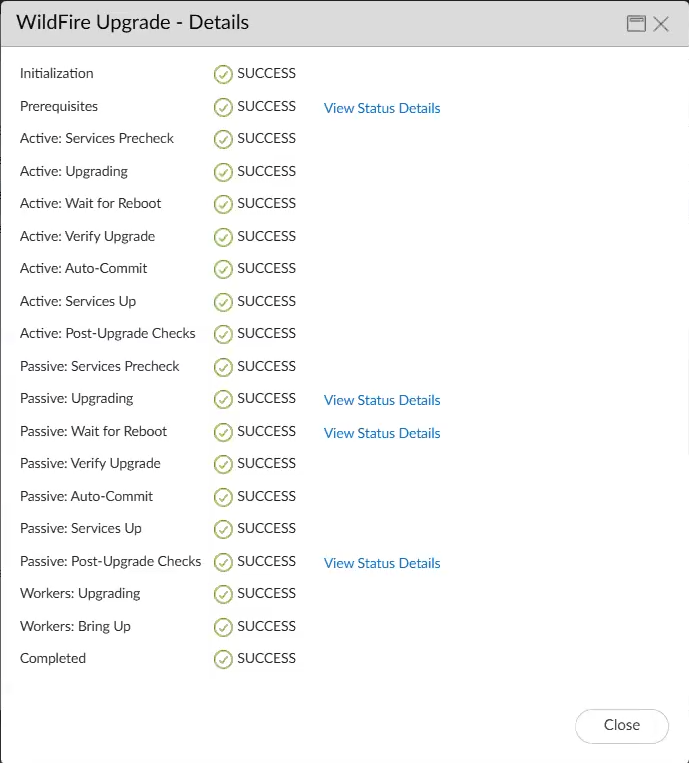
To view upgrade progress details in the Panorama web interface:- Select .
- Select the task with Type WildFire Upgrade to open the Job Status dialog.
- Click View Details in the Job Details column to open the WildFire Upgrade - Details dialog, which displays each stage with a SUCCESS or FAIL status indicator.
WildFire Upgrade - Details Dialog ![]() After all nodes report Complete status, verify the cluster is healthy by checking the cluster health state.A successful upgrade returns the cluster to a Green health state with all services operational.All nodes in the cluster are upgraded to the target software version. The cluster resumes normal sample analysis operations automatically after the upgrade completes.If the upgrade workflow reports a FAIL status for any node, click View Status Details in the WildFire Upgrade - Details dialog to identify the failure point.Common causes of upgrade failure include network connectivity loss during image upload, insufficient disk space, or power interruption during reboot.
After all nodes report Complete status, verify the cluster is healthy by checking the cluster health state.A successful upgrade returns the cluster to a Green health state with all services operational.All nodes in the cluster are upgraded to the target software version. The cluster resumes normal sample analysis operations automatically after the upgrade completes.If the upgrade workflow reports a FAIL status for any node, click View Status Details in the WildFire Upgrade - Details dialog to identify the failure point.Common causes of upgrade failure include network connectivity loss during image upload, insufficient disk space, or power interruption during reboot.