
Retiring, Recovering, and Deleting Certificates
Table of Contents

Retiring, Recovering, and Deleting Certificates
Next-Gen Trust Security lets you retire certificates that are no longer in use. Retired certificates are removed from active inventory but kept temporarily so you can recover them if needed.
What Does “retire” Mean?
Retiring a certificate moves it out of the active Certificate Inventory and into a temporary holding state. Retired certificates:
- Are not monitored
- Can be recovered during the retention period
After the retention period ends, retired certificates are permanently deleted.
Retire a Certificate
- Sign in to Next-Gen Trust Security.
- Click Insights > Certificate Inventory > Certificates.
- Find the certificate you want to retire.You can select more than one certificate.
- Select the checkbox next to each certificate, then click Retire in the inventory toolbar.
- In Retire certificate, keep Do not rediscover this certificate selected if you do not want future network discovery scans to find it again.Note: The Do not rediscover this certificate option applies only to network discovery. It does not affect machine, keystore, Kubernetes, or other types of discovery.
- Click Retire.
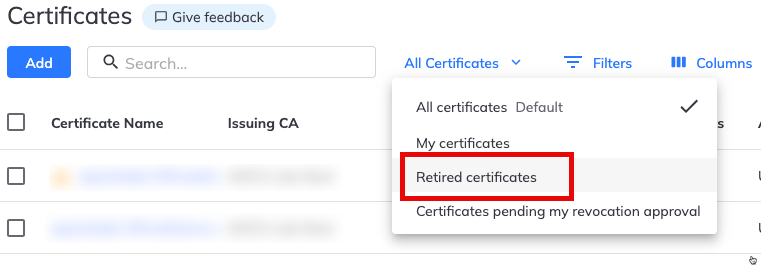
- To view retired certificates, change the inventory view to Retired certificates.
![]()
Recover a Retired Certificate
- Click Insights > Certificate Inventory > Certificates.
- Change the inventory view to Retired certificates.
![]()
- Find the certificate you want to recover.
- Select the certificate, then click Recover.
The certificate is returned to the active inventory.
Delete a Certificate Permanently
Retired certificates are automatically deleted after the configured retention period.You can also delete a retired certificate immediately.
To delete a certificate permanently:
- Open the certificate from the Retired certificates view.
- Click Delete forever.
Once deleted, the certificate cannot be recovered.