
47-Day Validity Readiness TLS Certificates dashboard
Table of Contents

47-Day Validity Readiness TLS Certificates dashboard
The 47-Day Validity Readiness TLS Certificates dashboard helps you prepare for upcoming certificate renewal surges resulting from the CA/Browser Forum’s new TLS Baseline Requirements. This dashboard visualizes the impact of those changes, projects renewal volumes, and recommends next steps for automation.
Access and Permissions
Access to the 47-Day Validity Readiness TLS Certificates dashboard is controlled by your Strata Cloud Manager (SCM) role and TSG scope:
- Required Permissions: Users must have the appropriate SCM role permissions to view this dashboard. Access to this dashboard also requires permission to view certificates.
- Parent TSG: Dashboards viewed from the parent TSG include certificates in the parent TSG and all child TSGs nested below it. Filtering can be applied to the dashboard to limit the view to certificates in a subset of TSGs.
- Child TSG: Dashboards viewed from a child TSG only include certificates in that specific child TSG.
The TLS Certificates dashboard displays a variety of certificate insights. Click All Active Certificates at the top of the dashboard and select one of the following filters:
- All Active Certificates
- Active Public Certificates
- Active Non-Public Certificates
Note: Click Download PDF in the top right corner of the dashboard to download a comprehensive PDF of your current CA/B Readiness TLS Certificates dashboard metrics.
Warning: Starting in 2026, the maximum certificate lifespan will reduce in multiple phases—from 398 days to just 47 days by 2029.
Purpose
The dashboard provides visibility into:
- How certificate lifespans will change by mandate deadline
- When those mandates take effect
- How many certificates you’ll need to renew and when
- How to reduce operational risk through early preparation and automation
TLS Certificates dashboard Widgets and Features
The 47-Day Validity Readiness Dashboard offers various insights into your certificate validity readiness. Refer to the following subsections to learn more about these insights:
Why Certificate Lifespans Are Shortening
This section outlines the background behind the CA/B Forum’s phased reductions in TLS certificate validity. It includes:
- Current validity: 398 days
- Phase 1 (March 15, 2026): 200 days
- Phase 2 (March 15, 2027): 100 days
- Phase 3 (March 15, 2029): 47 days
Mandate Deadline
Displays a countdown to each mandate phase:
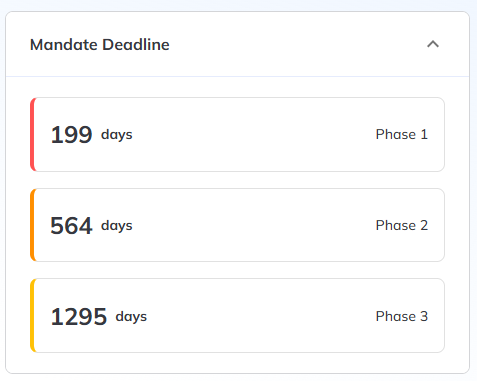
Use this information to prioritize migration efforts and policy changes.
Renewal Impact Projection (Phase 1)
This section highlights the total certificates projected to be affected by the upcoming 200-day limit in Phase 1:
- After Phase 1: Over 200 Days
- After Phase 1: 200 days or less
- Renewing before Phase 1
This breakdown helps identify which certificates are non-compliant under the upcoming rules.
Note: Click the number of certificates projected for renewal impact to redirect to the **Certificates TLS Certificates dashboard.
Projected Certificate Renewals (2025–2029)
Forecasts how many certificates will need renewal each year based on your current inventory and the phased CAB requirements:
Note: Renewals increase as certificate validity periods shorten and existing inventory nears expiration. Plan ahead to prevent disruptions.
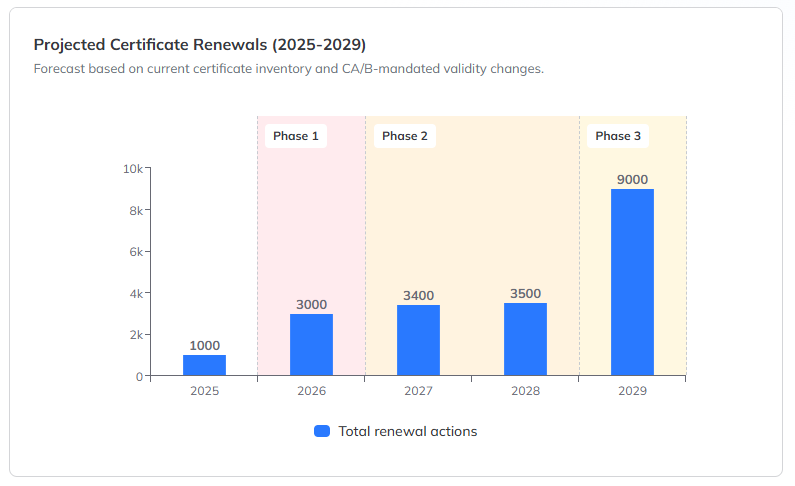
Phase-specific bands in the chart visually separate how each CAB requirement phase will affect renewal frequency.
Top CAs with Certificates Impacted by Phase 1
Highlights the certificate authorities (CAs) with certificates exceeding Phase 1 validity impact. If no data is displayed, it means none of your currently inventoried certificates from public CAs will be out of compliance during Phase 1.
Active Issuing Templates That Need Validity Changes
This section identifies issuing templates that are out of alignment with the upcoming CA/Browser Forum certificate lifespan mandates. Templates are ranked by the number of certificates they issue, helping you prioritize updates.
Select any of the following filters above the chart to view templates with certificates in different validity ranges:
- Over 200 days
- 100–199 days
- 48–99 days
Note: To prepare for the upcoming certificate lifecycle changes, connect to your CA to establish communication for managing validity and renewal policies. Next, create an issuing template that aligns with CAB requirements. Finally, set up an application and configure it for auto-renewal to streamline future certificate renewals. Use the Connect button to begin the setup process. For more information on adding Certificate Authorities, refer to Adding a certificate authority