Add VLAN Attachment
Table of Contents

Add VLAN Attachment
contains detailed step by step instruction to add a new vlan attachment to an
interconnect
| Where Can I Use This? | What Do I Need? |
|---|---|
|
|
After configuring the interconnect, you can add multiple VLAN attachments to enhance
performance and flexibility. VLAN attachments create redundant, high-throughput
paths and enable logical traffic segmentation over a single interconnect. Adding
multiple attachments improves high availability and resilience—particularly for
Partner Interconnects—and allows more efficient traffic management within a tenant
environment.
You can configure up to 16 VLANs per interconnect per region.
To add VLAN attachments, perform the following:
- Go to , and select the desired interconnect.
![]() Add VLAN Attachment and specify the following based on the Cloud Service Provider:
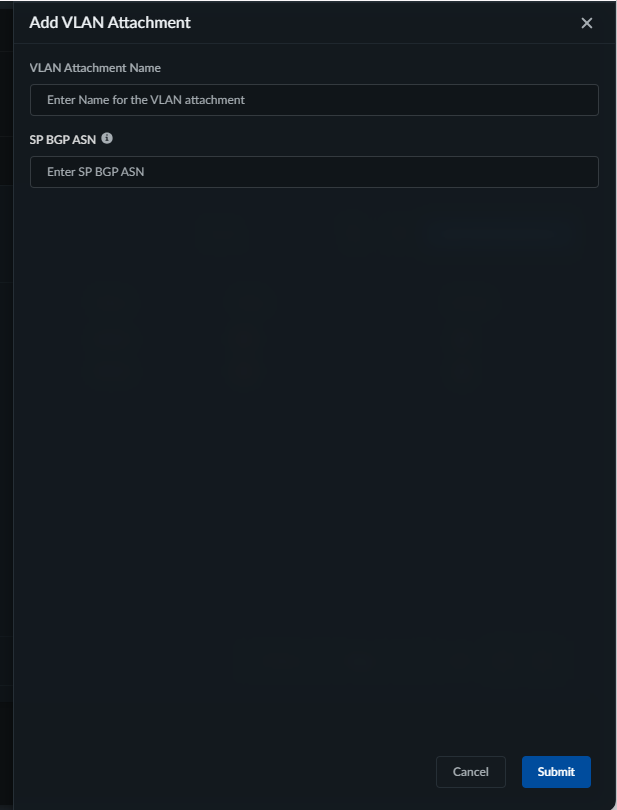
Add VLAN Attachment and specify the following based on the Cloud Service Provider:- For AWS, specify the following:
- Enter the VLAN Attachment Name.
- Enter the public or private Border Gateway Protocol (BGP) Autonomous System Number (ASN) to establish peering for route exchange between the service provider network and the public cloud.
![]()
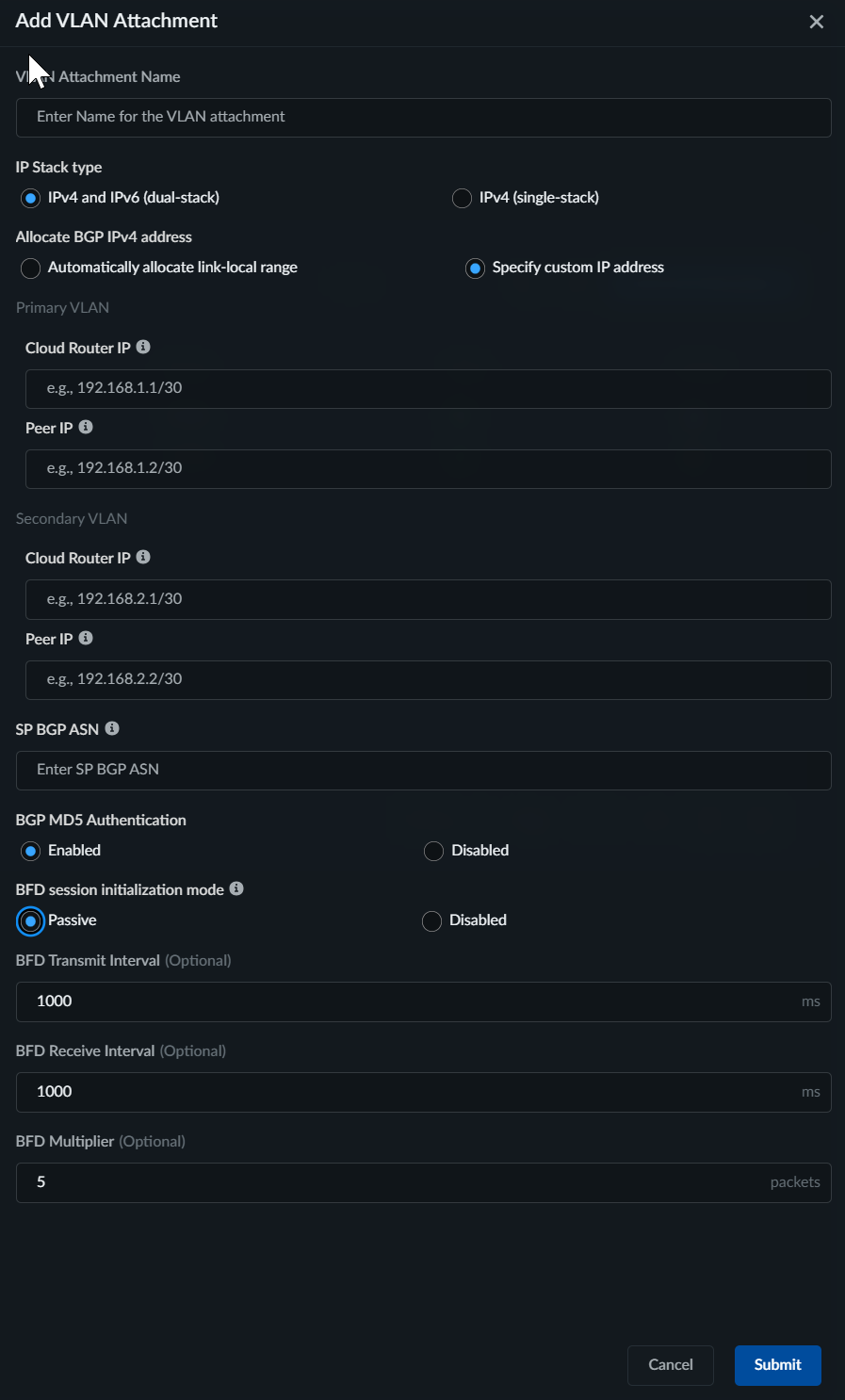
- For GCP, specify the following:
- Enter the VLAN Attachment Name.
- Select the IP Stack Type: IPv4(single-stack) or IPv4 and IPv6(dual-stack)
- For Allocate BGP IPv4 Address, choose how BGP peering IP addresses are assigned between the edge router and the cloud router:
- Automatically Allocate Link-Local Range (default)—GCP automatically assigns link-local addresses from the 169.254.0.0/16 range for BGP peering between the edge router and the cloud router.
- Specify Custom IP Address—Define your own IP addresses for BGP peering sessions on both the primary and secondary VLAN attachments. Select this option when you need to use service provider-assigned IP addresses instead of GCP's default link-local range.For both the Primary VLAN and Secondary VLAN, specify the following:
- For Cloud Router IP, enter the IP address for the cloud router interface on this VLAN attachment. The cloud router uses this address to establish the BGP session with the edge router. Use a /30 subnet. The primary and secondary VLAN subnets must not overlap.
- For Peer IP, enter the IP address for the edge router (peer) on this VLAN attachment. This address must be in the same /30 subnet as the corresponding Cloud Router IP.
- Specify the public or private Border Gateway Protocol (BGP) Autonomous System Number (ASN) to establish peering for route exchange between the service provider network and the public cloud.
- Enable BGP MD5 Authentication to use the hash algorithm, or Disable it to use plain text authentication.
- BFD Session Initialization mode for BGP peer: Passive or Disabled.
- Passive: The cloud router will wait for the peer router to initiate the BFD session. For the router to wait, you must specify the BFD Transmission Interval, BFD Receive Interval, and BFD Multiplier.
- Disabled: BFD will be disabled for this BGP peer.
![]()