Activate a Product: Term
Table of Contents

Activate a Product: Term
Contains detailed instruction to activate a product in multitenant
environment.
| Where Can I Use This? | What Do I Need? |
|---|---|
|
|
This section provides guidance for activating SASE and Firewall products in a
multi-tenant environment. It covers the prerequisites, such as creating the required
tenants, and outlines the steps for activating products and allocating licenses
across multiple tenants to ensure proper distribution and usage.
SASE
This topic contains instructions to activate SASE products in an multitenant
environment.
| Where Can I Use This? | What Do I Need? |
|---|---|
|
|
Before you begin:
- Ensure that all required tenants are created and the tenant hierarchy is properly configured.
- Ensure that the product is activated on the default tenant. For activation steps, refer to the respective product documentation.
In a multi-tenant environment, activating a product requires redistributing
the license quantity assigned to the default tenant across other tenants in the
hierarchy. When a product license is activated, the full license quantity is
automatically assigned to the primary (default) tenant. You must then reallocate the
required license quantities to the remaining tenants based on your deployment
needs.
This section describes how to allocate and manage license quantities across
tenants after the product has been activated.
To allocate licenses:
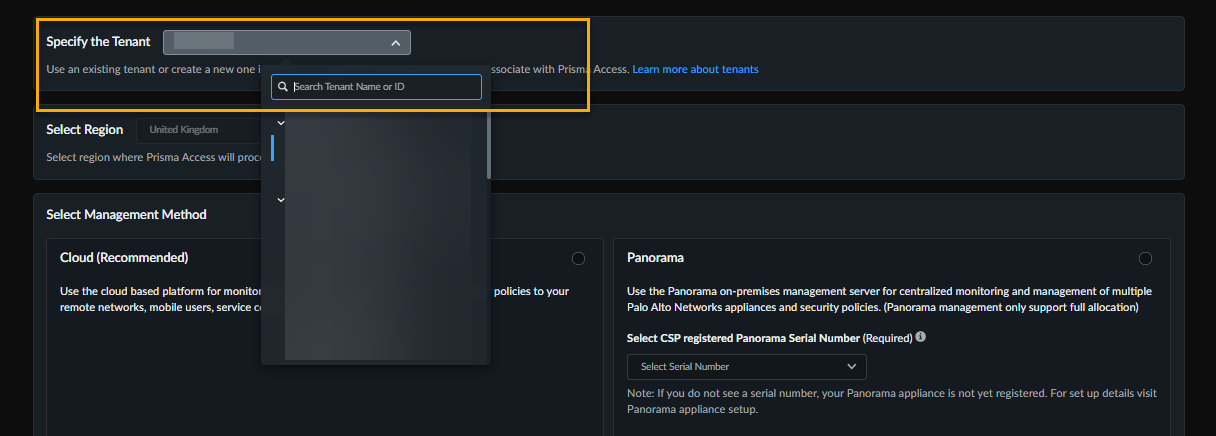
- On the Subscriptions page, locate the activated product you wish to manage.Click for the required product.
![]() Select the target tenant.
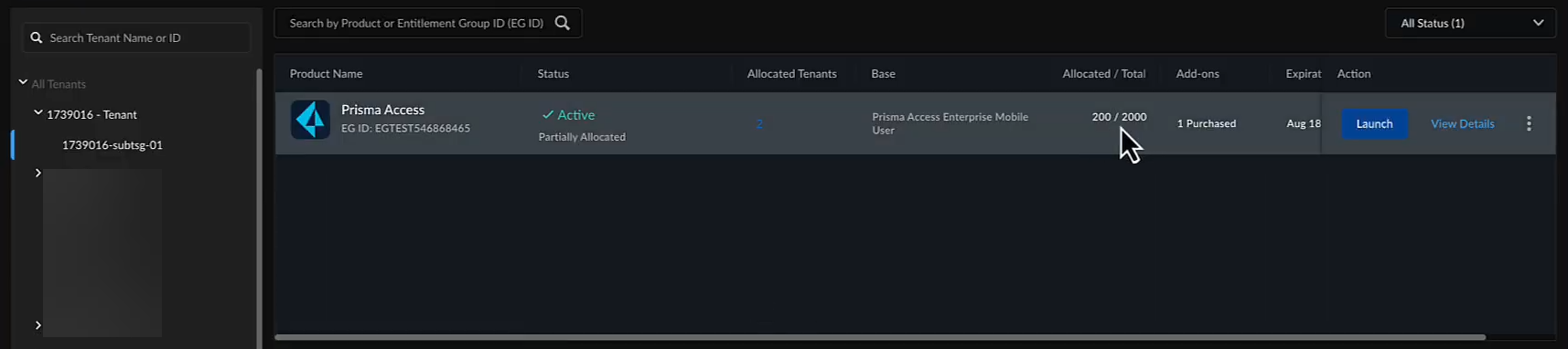
Select the target tenant.![]() Select a Region nearest to the storage location of the data logs.Modify the license allocation as needed.Note: If you are modifying the allocation for the default tenant, ensure that you reduce the assigned license quantity. The reduced quantity becomes available for reallocation to other tenants in the hierarchy.Agree to the terms and conditions, and select Activate Now to activate the license on the selected tenant.Validate the allocation by clicking View Details and hovering over the Tenants to view the license quantity for each tenant.Repeat from the Step 3 to allocate licenses to additional tenants.Validate the license allocation by switching to the corresponding tenant in the tenant browser and reviewing the allocation details.
Select a Region nearest to the storage location of the data logs.Modify the license allocation as needed.Note: If you are modifying the allocation for the default tenant, ensure that you reduce the assigned license quantity. The reduced quantity becomes available for reallocation to other tenants in the hierarchy.Agree to the terms and conditions, and select Activate Now to activate the license on the selected tenant.Validate the allocation by clicking View Details and hovering over the Tenants to view the license quantity for each tenant.Repeat from the Step 3 to allocate licenses to additional tenants.Validate the license allocation by switching to the corresponding tenant in the tenant browser and reviewing the allocation details.![]()
Firewall and SD-WAN
Contains details about how to activate firewall and SD-WAN products in multitenant environment.Where Can I Use This? What Do I Need? - Strata Multitenant Cloud Manager
- Activation Console
- NGFW
- SD-WAN
- Superuser or Multitenant Superuser role
See the license activation topics in this guide for details about activating specific products. In general, for a Managed Security Service Provider (MSSP), you will select the Customer Support Portal account that you want to use for managing your customers' products. You will create a tenant hierarchy to manage them. Depending on the product, you might be asked to select a region where you want to deploy the product, to select or create Strata Logging Service to store the logs, to select or create a Cloud Identity Engine instance to identify and verify all users across the infrastructure, or to associate devices or appliances.After you activate a tenant heirarchy, you have access to Common Services to manage your tenants from the Activation Console or Strata Cloud Manager. You can also use Strata Multitenant Cloud Manager aggregated views for monitoring information across all of your tenants.- In the case of managed security service providers (MSSP), the end customers are managed by the MSSP that owns the Customer Support Portal account.
- The default tenant is associated with the MSSP Customer Support Portal account. The user activating the product must be granted access to that tenant, and then user can create child tenants and activate products in the child tenant.