Table of Contents

SASE
This topic contains instructions to activate SASE products in an multitenant
environment.
| Where Can I Use This? | What Do I Need? |
|---|---|
|
|
Before you begin:
- Ensure that all required tenants are created and the tenant hierarchy is properly configured.
- Ensure that the product is activated on the default tenant. For activation steps, refer to the respective product documentation.
In a multi-tenant environment, activating a product requires redistributing
the license quantity assigned to the default tenant across other tenants in the
hierarchy. When a product license is activated, the full license quantity is
automatically assigned to the primary (default) tenant. You must then reallocate the
required license quantities to the remaining tenants based on your deployment
needs.
This section describes how to allocate and manage license quantities across
tenants after the product has been activated.
To allocate licenses:
- On the Subscriptions page, locate the activated product you wish to manage.Click for the required product.
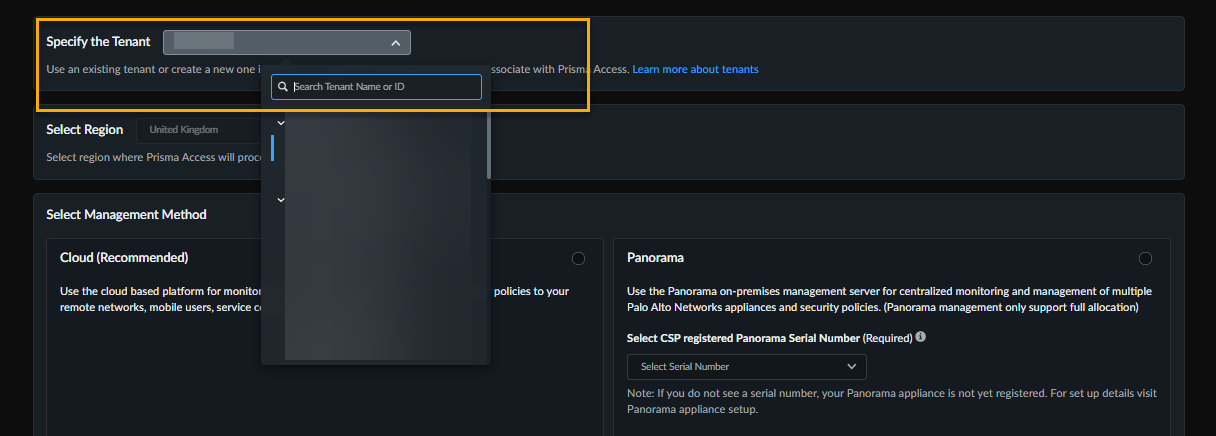
![]() Select the target tenant.
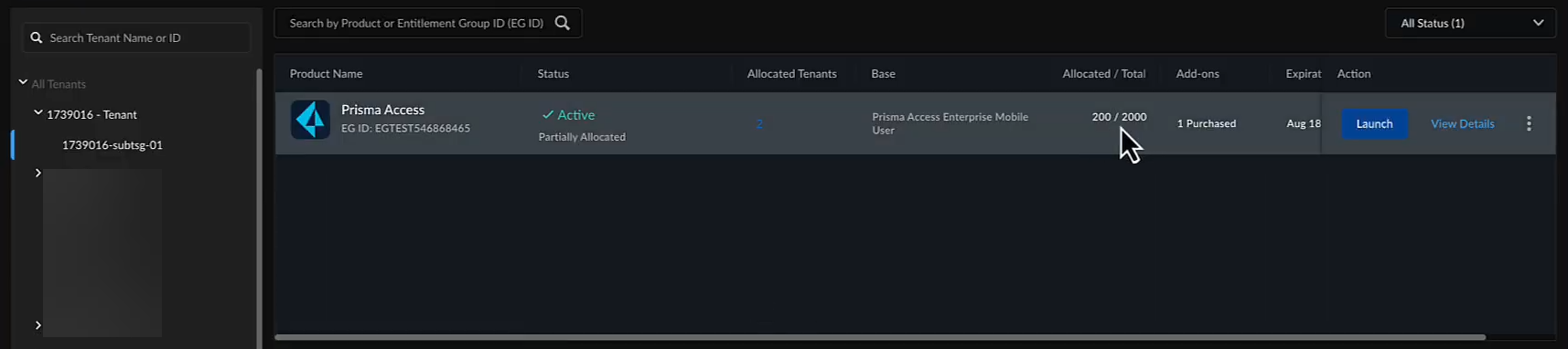
Select the target tenant.![]() Select a Region nearest to the storage location of the data logs.Modify the license allocation as needed.Note: If you are modifying the allocation for the default tenant, ensure that you reduce the assigned license quantity. The reduced quantity becomes available for reallocation to other tenants in the hierarchy.Agree to the terms and conditions, and select Activate Now to activate the license on the selected tenant.Validate the allocation by clicking View Details and hovering over the Tenants to view the license quantity for each tenant.Repeat from the Step 3 to allocate licenses to additional tenants.Validate the license allocation by switching to the corresponding tenant in the tenant browser and reviewing the allocation details.
Select a Region nearest to the storage location of the data logs.Modify the license allocation as needed.Note: If you are modifying the allocation for the default tenant, ensure that you reduce the assigned license quantity. The reduced quantity becomes available for reallocation to other tenants in the hierarchy.Agree to the terms and conditions, and select Activate Now to activate the license on the selected tenant.Validate the allocation by clicking View Details and hovering over the Tenants to view the license quantity for each tenant.Repeat from the Step 3 to allocate licenses to additional tenants.Validate the license allocation by switching to the corresponding tenant in the tenant browser and reviewing the allocation details.![]()